

How to export your data from Keeper and import it into Password Manager by 2Stable?
If you’ve been saving your passwords in Keeper, you can export them and import them into the Password Manager by 2Stable to keep everything secure and in one place.
Since Keeper doesn’t support exporting passwords directly from iPhone or iPad, you’ll need to use a Mac to complete the export process.
⬆️ Exporting Your Keeper Data
To export your saved passwords from Keeper, follow these steps:
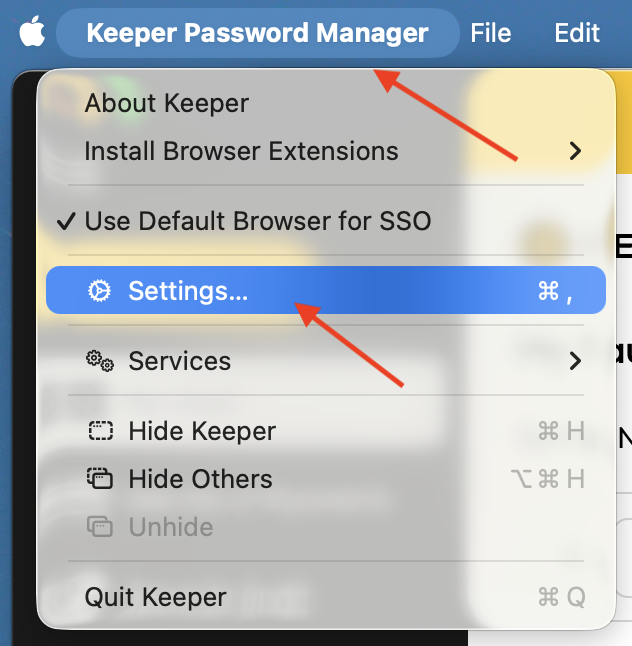
On the top menu bar, open Keeper Password Manager and select Settings.
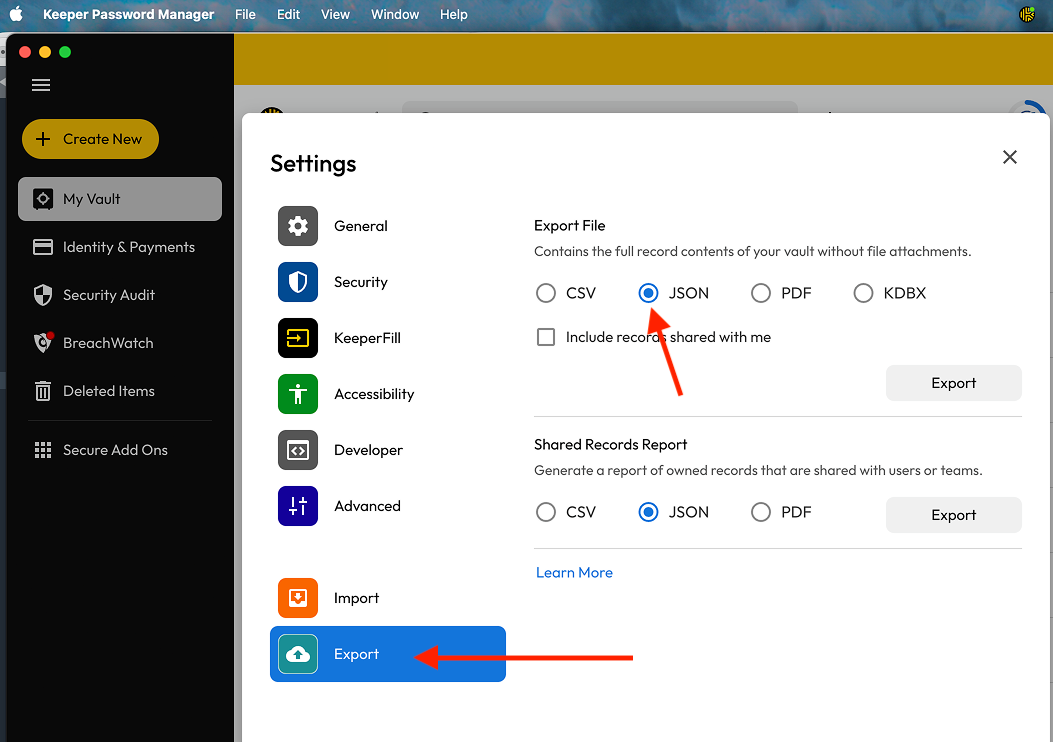
Select the Export option. Under Export File, choose JSON file and tap Export.
Save the exported file in a secure location — you’ll need it to import your data into the Password Manager by 2Stable.
🔐 Note for security: The exported file from Keeper is not encrypted, so anyone with access to it can view your data. Make sure to store it safely and delete it once you’ve finished importing.
⬇️ Importing from Keeper
You can import a file created by Keeper by following these steps:
Open the Password Manager, then go to Settings > General > Import.
In the Import section, select the Keeper option.
Tap Select File, locate and select the Keeper generated file to import and complete the process.
Once the file is successfully imported, your data should appear on the main screen of the Password Manager by 2Stable.